Setting Page Order and Parent/Child Pages
Pages on the site can be nested under one another
Pages on the site can be nested under one another — a “Safeguarding” page might sit under “About Us”, for example — and the order they appear in menus or listings can be controlled directly. This page explains how parent/child relationships and page order work, and where they show up.
What a parent page does
Setting a parent page nests one page underneath another in the site’s structure. This affects two things: the page’s web address (child pages often inherit the parent’s URL path, e.g. /about-us/safeguarding/) and how the page appears in navigation — many menus and page-listing blocks group child pages under their parent automatically.
It does not automatically add the page to the main menu — that’s a separate step, covered in the article on editing the main menu.
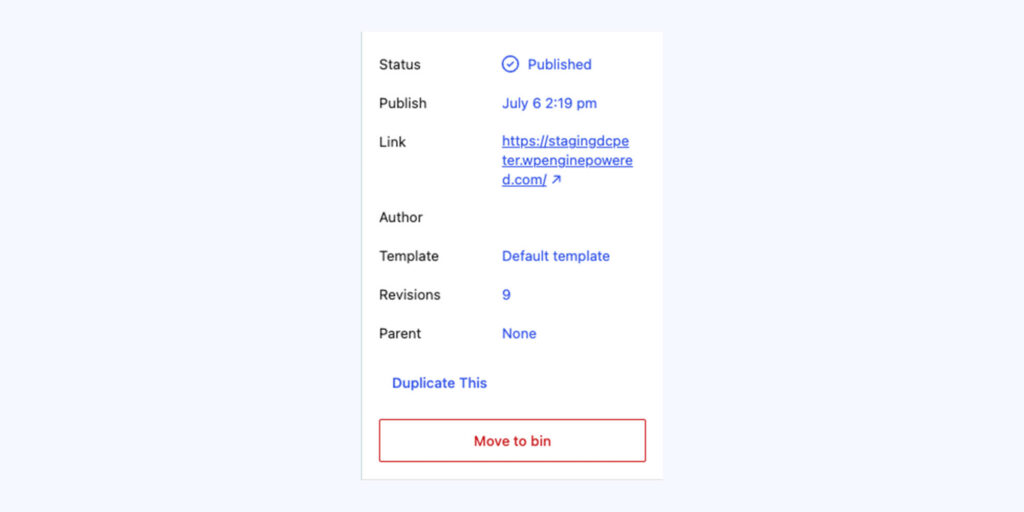
Setting a parent page
- Open the page you want to nest, in the editor.
- Open the Page settings panel on the right (the gear icon, if not already showing).
- Look for the Page Attributes section.
- Click the Parent Page dropdown and select the page you want this one to sit underneath, or choose (no parent) to make it a top-level page.
- Update or publish the page to save the change.
Changing the parent of an existing, already-published page can change its web address. If the page is linked to from elsewhere, or indexed by search engines, check with us before changing the parent of a live page — we can help make sure old links still redirect properly.
Setting the page order
Within the same Page Attributes panel, you’ll find an Order field. This is a number that controls where the page sits relative to its siblings (other pages with the same parent, or other top-level pages) wherever an automatic page list is used — for example, a sub-navigation menu or a “child pages” block.
- Lower numbers appear first — a page set to 0 will typically appear before a page set to 10.
- Pages with the same order number usually fall back to alphabetical order.
- Leaving it at 0 for everything is fine if you don’t need a specific sequence — most sites only need this for a handful of key pages.
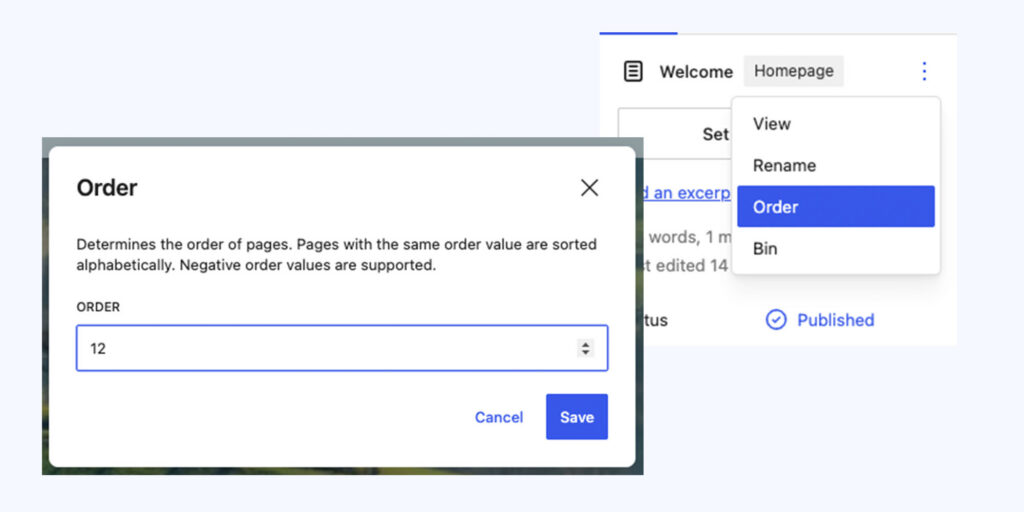
Where this shows up
Parent/child structure and page order affect:
- Automatic sub-navigation menus that list child pages of the current section.
- Breadcrumb trails, which follow the parent chain (see the separate article on breadcrumbs).
- Any “List of Pages” style block used to build an index page manually.
It does not affect the main menu directly — that’s built and ordered by hand, separately, so a page won’t appear there automatically just because it has a parent set.
Tips
- Keep nesting to two or three levels deep at most — very deep page structures get hard for visitors to navigate and for you to manage.
- If you’re not sure whether a page should have a parent, think about whether it’s a standalone topic (top-level) or a detail/sub-topic of something else (child).
- Get in touch before restructuring a large section of the site — moving several pages around can affect multiple URLs and menu items at once.
Conversation
Leave a Reply
You must be logged in to post a comment.
Thanks for the feedback. Let us know what was missing and we will improve this page.
Thank you for your feedback.