Understanding Typography Options
Most text-based blocks — paragraphs, headings, lists, buttons — include a Typography panel in the block settings
Most text-based blocks — paragraphs, headings, lists, buttons — include a Typography panel in the block settings on the right-hand side of the editor. This controls how the text looks: its size, font, spacing, and case. This page explains what each option does and when you might use it.
Finding the Typography panel
- Click into the block you want to style (a paragraph, heading, etc.).
- Open the block settings sidebar on the right if it isn’t already showing.
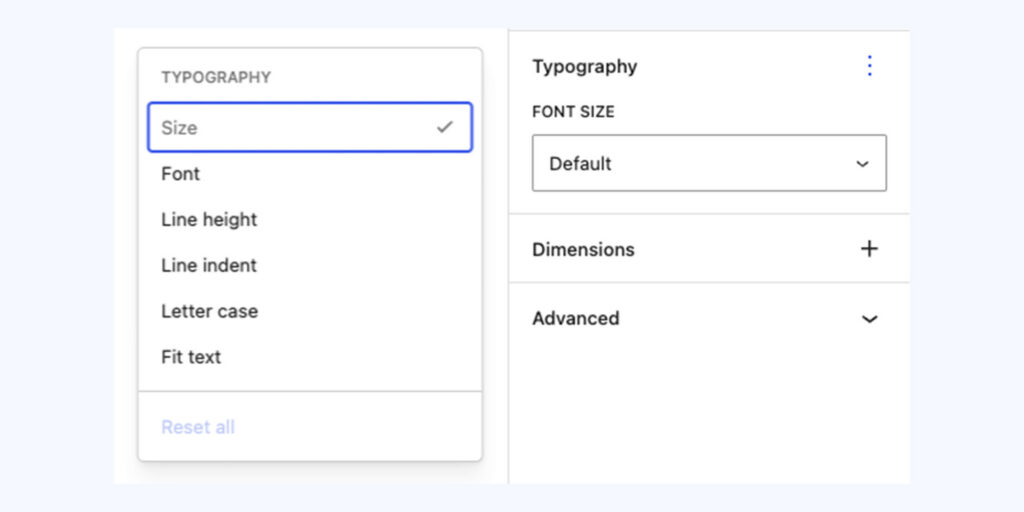
- Look for the Typography section. By default it only shows Font size — the other options need switching on first (see below).
Turning on extra typography options
To keep the sidebar uncluttered, WordPress hides most typography controls until you ask for them:
- In the Typography panel, click the three-dot Options menu in the top right corner of that section.
- A list appears — Size, Font, Line height, Line indent, Letter case, and Fit text — with a tick next to whichever are currently visible.
- Click any option to toggle it on or off in the panel below.
- Reset all, at the bottom of this list, clears any typography changes you’ve made on the block back to the theme default.
Once switched on, an option stays visible in the panel for that block going forward — you don’t need to reopen this menu every time.
What each option does
Size
Sets the font size for the selected text or block. The dropdown offers the theme’s preset sizes (Small, Medium, Large, and so on) so text stays consistent with the rest of the site — pick Default to leave it as the theme intends. There’s usually also a custom option if you need a specific size, but presets are recommended wherever possible to keep pages looking consistent across the site.
Font
Chooses which typeface the text uses, from the fonts set up in the theme. In most cases this should be left on the default — diocese sites are built around a specific font pairing for brand consistency, and switching fonts on individual blocks can look inconsistent with the rest of the page.
Line height
Controls the vertical spacing between lines of text within the same block — useful for loosening up a dense paragraph or tightening a large heading. A higher number spaces lines further apart; a lower number pulls them closer together.
Line indent
Indents the first line of a paragraph, similar to a traditional printed-page style. Rarely needed for web content, but available if a particular layout calls for it.
Letter case
Forces text to display as UPPERCASE, lowercase, or Capitalized, regardless of how it’s typed. Useful for things like small heading labels or button text where the design calls for capitals, without you having to retype the actual text in capitals (which can cause issues for screen readers).
Fit text
Available on some heading and text blocks — automatically scales the font size so the text fills the available width of its container, shrinking or growing as you resize the block. Handy for large banner-style headings where you want the text to always look “full width” regardless of how long it is.
Tips
- Stick to preset sizes and the default font wherever possible — this keeps every page looking consistent and makes future design updates apply site-wide instead of being overridden by one-off block settings.
- Use Reset all if a block starts looking odd and you’re not sure what’s been changed — it’s a quick way back to the theme default without undoing your text content.
- Avoid using Letter case to type block text entirely in capitals — set the case here instead, so the underlying text stays normal for anyone using assistive technology.
- If you only need one of these options regularly (e.g. Line height), turn it on once via the Options menu and it’ll stay available on that block type going forward.
Conversation
Leave a Reply
You must be logged in to post a comment.
Thanks for the feedback. Let us know what was missing and we will improve this page.
Thank you for your feedback.