Using Block Patterns
Block Patterns are ready-made layouts you can drop into a page in one click
Block Patterns are ready-made layouts you can drop into a page in one click — a hero banner, a three-column feature grid, a staff listing, an event callout. Instead of building a layout block by block, you insert a pattern and just change the text and images. This page covers where to find patterns, how to insert them, and how to edit the content once they’re on the page.
What is a pattern?
A pattern is simply a group of blocks — headings, paragraphs, images, buttons, columns — saved together as one reusable layout. When you insert a pattern, WordPress copies that whole arrangement onto your page. From that point on it behaves like any other set of blocks on the page: you can edit the text, swap the images, remove a column, or delete it entirely, and it won’t affect the pattern anywhere else it’s used.
This is different from a synced pattern (covered in the next article), where editing one copy updates every copy across the site. The patterns built into WordPress and our theme are all standard, non-synced patterns unless stated otherwise — they’re a starting layout, not a linked template.
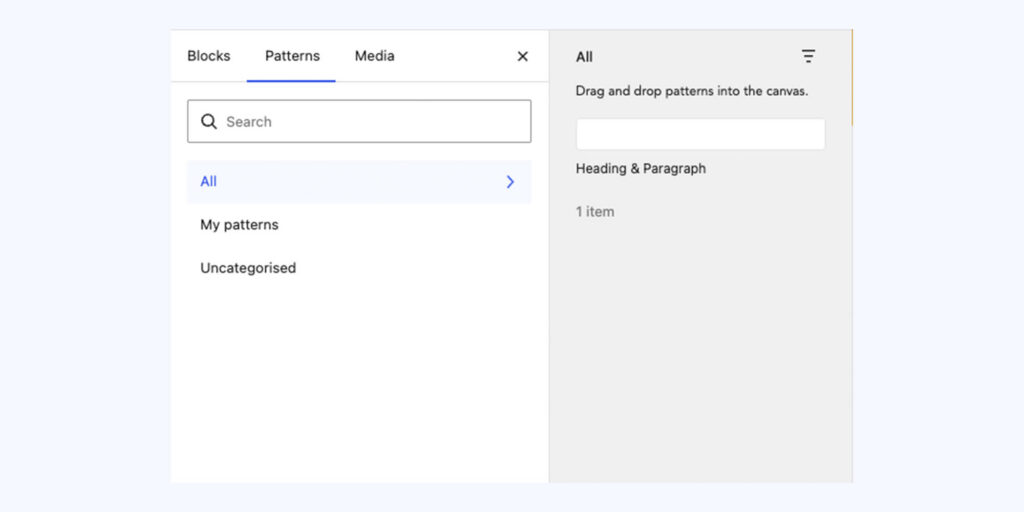
Finding patterns
- Open the block inserter — the + icon at the top left of the editor, or press / at the start of an empty line.
- Switch to the Patterns tab (next to Blocks and Media).
- Patterns are grouped into categories down the left-hand side — look for Featured, Banners, Columns, Call to Action, and any diocese-specific categories such as Diocese Patterns.
- Hover over a pattern to see a larger preview before you commit to it.
Inserting a pattern
- Click into the page where you want the pattern to appear — patterns are inserted at the cursor position, in the same way a new block would be.
- Open the inserter and go to the Patterns tab as above.
- Click the pattern you want. It will appear on the page immediately, fully editable.
- Click into each piece of placeholder text or image and replace it with your own content.
If you insert the wrong pattern, select it (click once on an empty area within it so the whole block group is highlighted) and press Delete, or use the Remove option in the block toolbar. This won’t affect the pattern in the library — you’re only removing your copy of it from this page.
Editing content inside a pattern
Once inserted, every part of a pattern is a normal block. That means:
- Text — click directly into any heading or paragraph and type over it.
- Images — click the image, then use the toolbar’s Replace button, or click Replace in the image block settings, to swap in your own.
- Buttons/links — click the button text to edit the label, and use the link icon in the toolbar to set where it points.
- Columns — click into a column to select it; use the + and column options in the toolbar to add or remove columns if the pattern supports it.
You can also delete individual blocks within a pattern (for example, removing one column of a three-column feature) without affecting the rest. Click the block, then use the three-dot menu in its toolbar and choose Delete.
Common patterns on diocese sites
- Page Banner — full-width heading and image at the top of a page.
- Three-Column Feature — icon or image, heading, and short text repeated three times, good for “our services” style sections.
- Call to Action — heading, short text, and a button, used to drive people to a form or key page.
- Staff / Contact Listing — photo, name, role, and contact details in a repeating row.
- Event Highlight — designed to pair with the Vacancies/Events content types.
Availability of specific patterns can vary slightly by diocese theme. If you’re looking for a layout that isn’t listed, check the Patterns tab first — new patterns are added from time to time — or get in touch and we can point you to the closest match.
Tips
- Patterns are a starting point, not a fixed template — it’s fine to remove elements you don’t need.
- Keep an eye on image dimensions when replacing images; very tall or very narrow images can distort a pattern’s layout. If in doubt, use an image close to the size of the one you’re replacing.
- If a page starts looking broken after editing a pattern, check whether a block was accidentally deleted rather than just edited — use Undo (Ctrl/Cmd+Z) to step back.
Conversation
Leave a Reply
You must be logged in to post a comment.
Thanks for the feedback. Let us know what was missing and we will improve this page.
Thank you for your feedback.